Self-Service API Credentials & Access
ISO Admins, Agent Office Admins, and Merchant Admins using iPOS Transact API can now generate API Keys and Secret Keys directly from their iPOSpays account without contacting a Dejavoo representative.
This update also simplifies authentication by removing the need to provide scopes in API requests manually. Access scopes are now predefined and automatically assigned based on the user who has generated the API and Secret Key.
Supported Scopes
Merchant-Level API Credentials
- PaymentTokenization
- Recurring
- BatchReport
ISO-Level API Credentials
- ExternalApi
Agent Office Admin-Level API Key and Secret Key
- ExternalApi
Scope Definitions
| Scope | Description |
|---|---|
| PaymentTokenization | Access to iPOS Transact (v3) APIs and transaction status APIs |
| Recurring | Access to recurring payment functionality |
| BatchReport | Access to closed batch reports |
| ExternalApi | Access to merchant onboarding APIs |
Feature Compatibility
- Minimum Required POS Build: Not Applicable
- Where it Works: iPOS Transact API
Where to Access
ISO Admin Workflow
- Log in to the iPOSpays portal using an ISO Admin account
- Navigate to: Settings → Generate API & Secret Key
- Under the Generate Keys section:
- View the generated API Key and Secret Key
- Click the Copy icon to copy the keys
- Secret Key is masked by default
- Click Reset Secret Key to regenerate the Secret Key
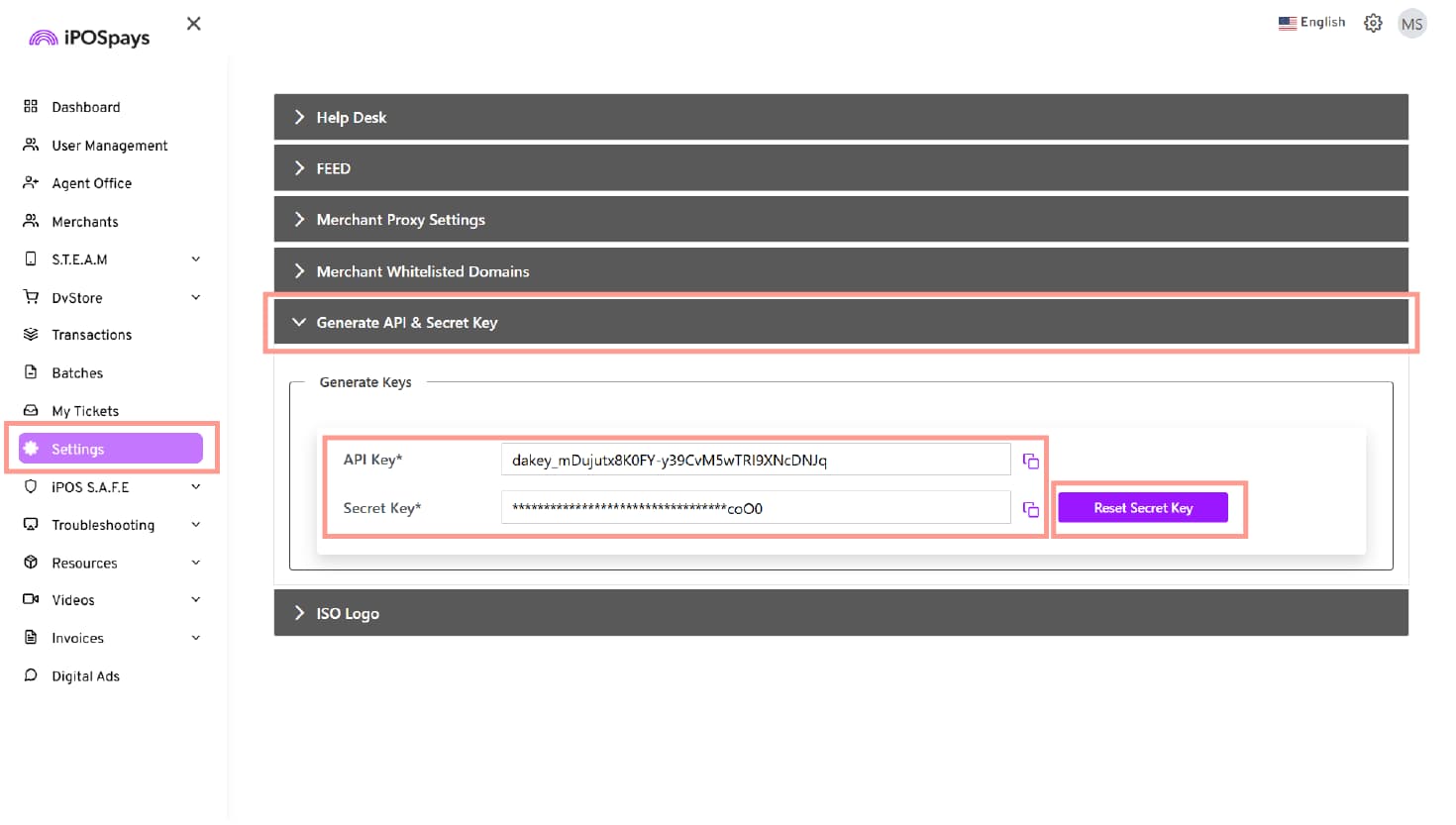
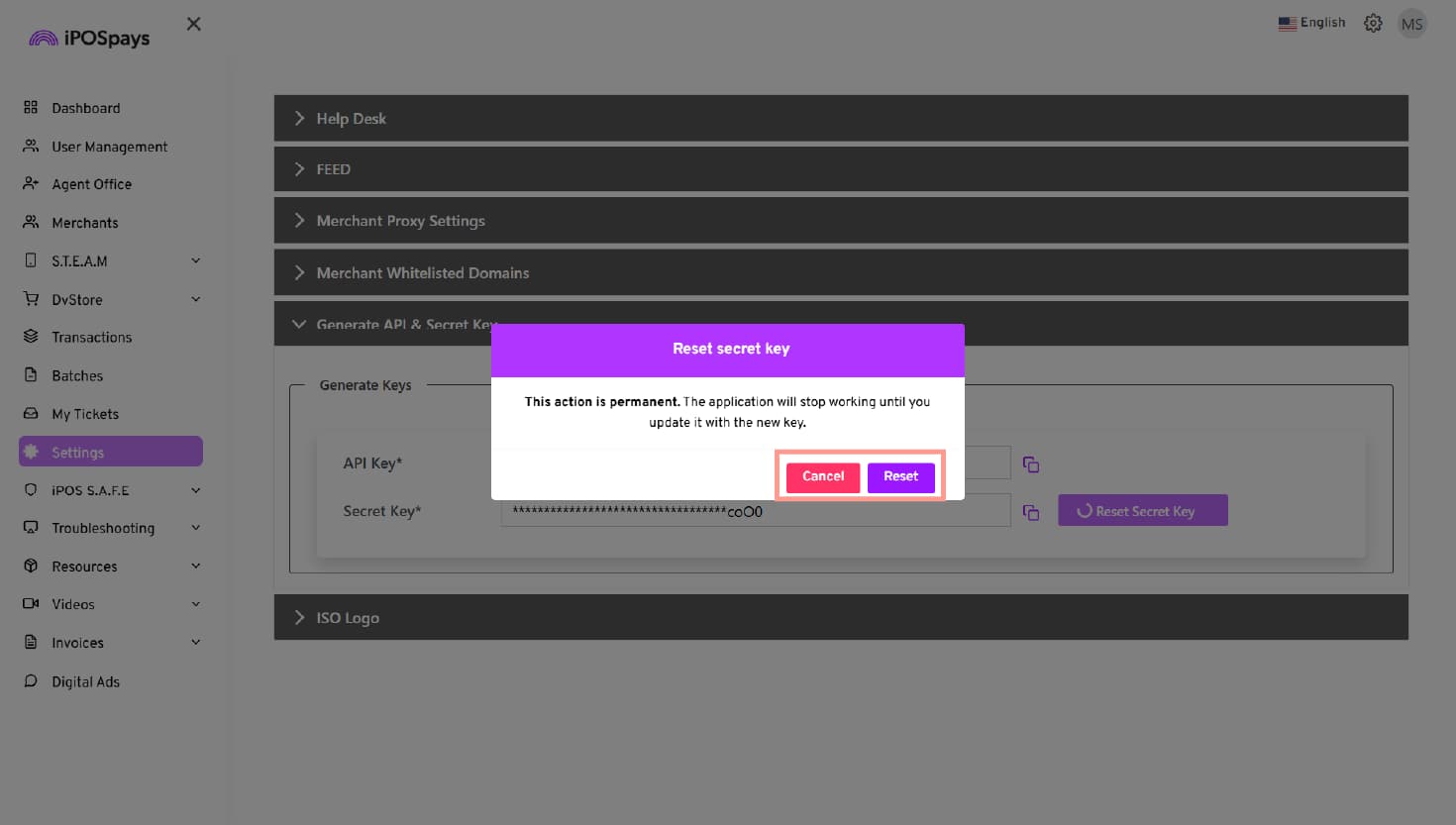
- Use the generated API Key and Secret Key for API authentication
Merchant Admin Workflow
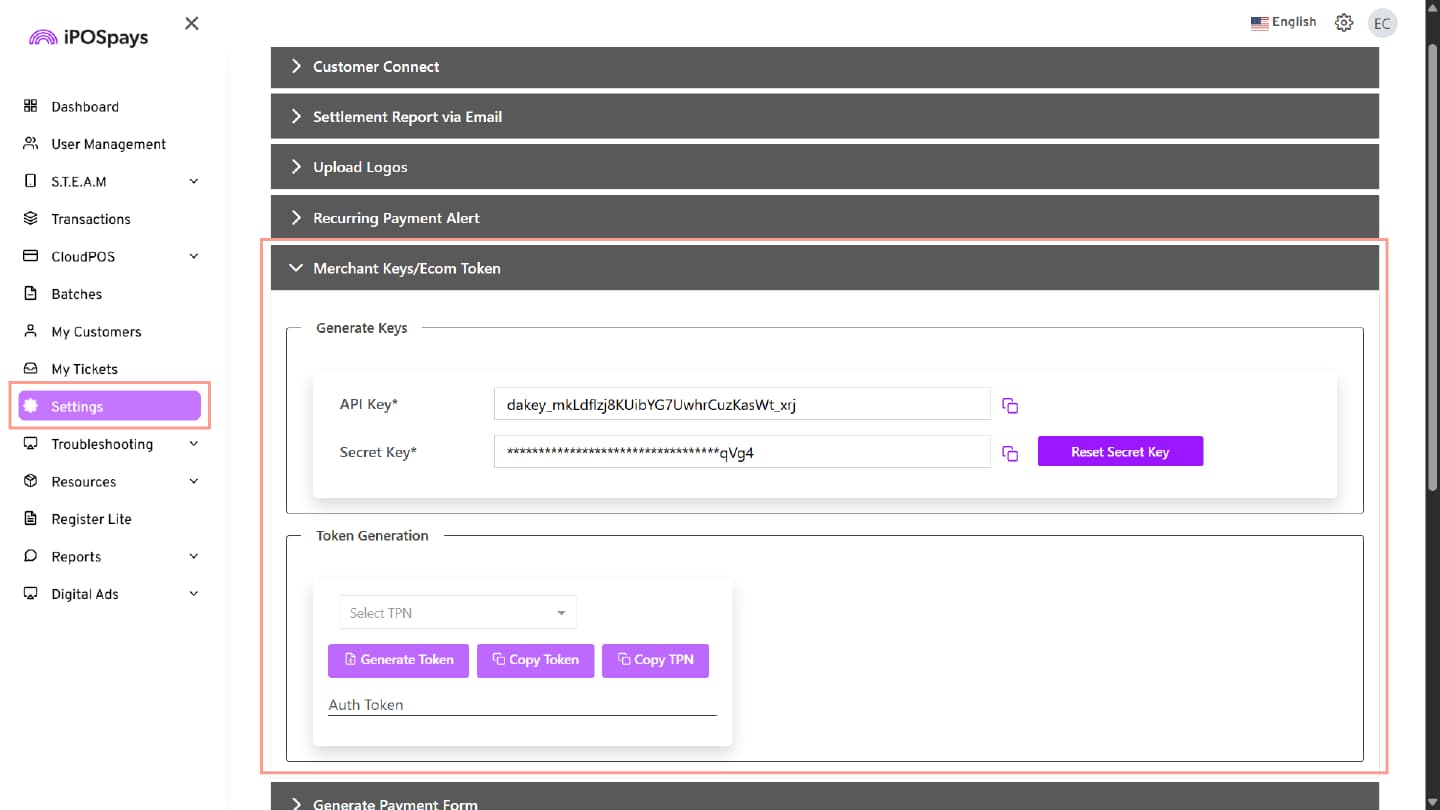
- Log in to the iPOSpays portal using a Merchant Admin account
- Navigate to: Settings → Merchant Keys/Ecom Token
- Under the Generate Keys section:
- View and copy the API Key and Secret Key
- Secret Key is masked by default
- Reset the Secret Key if required
- Under the Token Generation section:
- Select the TPN from the dropdown
- Click Generate Token to generate the Auth Token
- Click Copy Token to copy the generated token
- Click Copy TPN to copy the selected TPN
- Use the generated API Key, Secret Key, and Auth Token for API authentication and transaction processing
Agent Admin Workflow
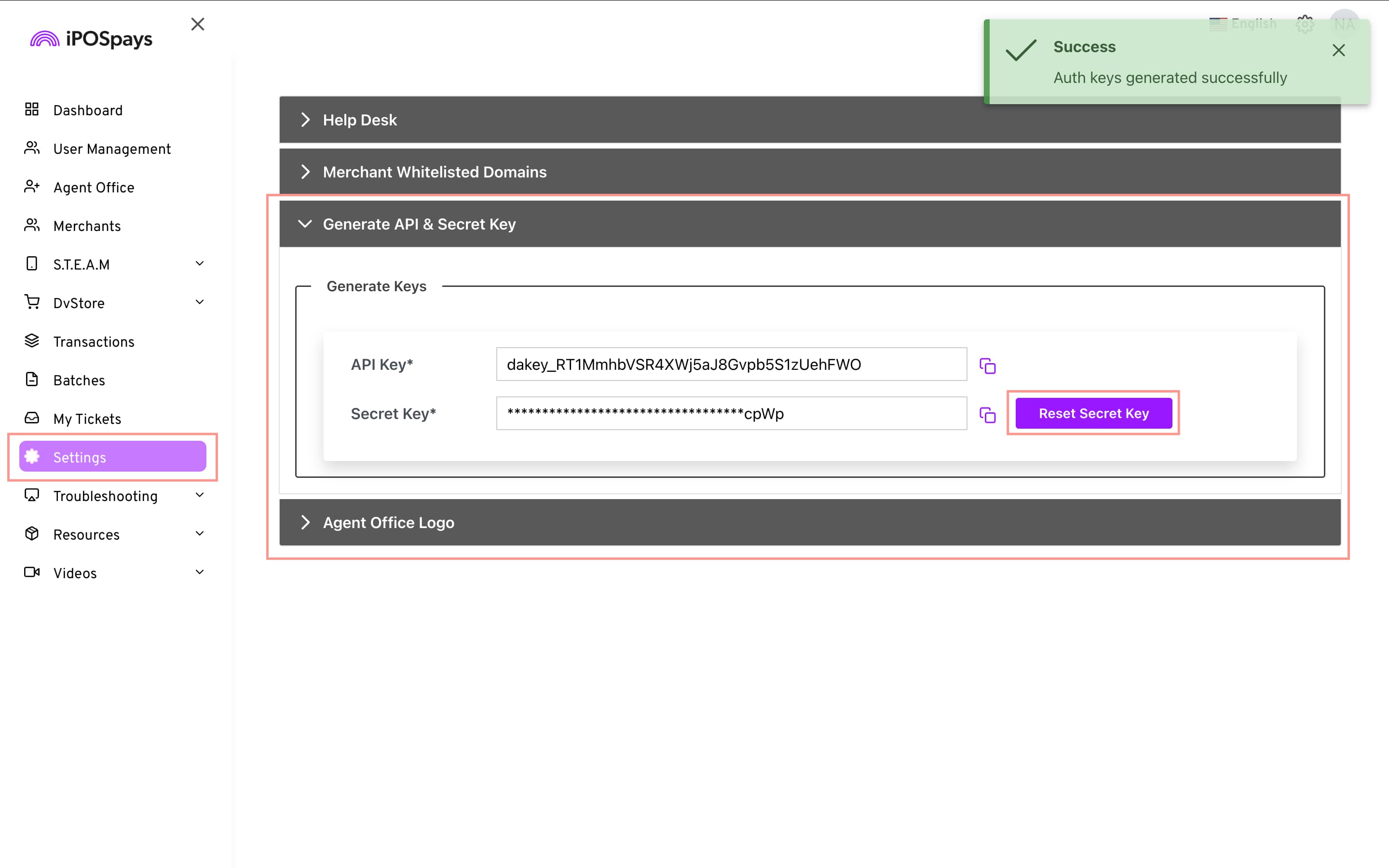
- Log in to the iPOSpays portal using an Agent Admin account
- Navigate to: Settings
- Under the Generate API & Secret Key section:
- View and copy the API Key
- View and copy the Secret Key
- Secret Key is masked by default
- Click Reset Secret Key to generate a new Secret Key if required
- A success message is displayed after the keys are generated successfully
Key Enhancements
-
Secure API authentication using API Key + Secret Key
-
JWT-based token authentication for all API calls
-
Token refresh mechanism to avoid transaction failures
-
Role-based access (ISO Admin, Merchant Admin, and Agent Office Admin)
-
Secret Key masking for enhanced security
-
Reset Keys option to regenerate credentials
-
The Secret Key is masked by default and is only visible when copied
-
Resetting keys invalidates previous keys
-
Token access is based on user role and privileges
-
No changes required to the existing database structure
-
Backward compatibility is maintained
-
Existing JWT token generation, refresh, expiry, and grace period behaviors continue to function as designed without changes.
Developer Documentation
For complete API details, including request and response structures, refer to: