HPP E-Signature for Payment Links
CloudPOS now supports Customer Electronic Signature for payment links. This enhancement ensures that customers acknowledge the transaction before completing payment, helping improve chargeback protection and transaction authorization.
Merchants can enable this feature when sending payment links, and the same functionality is also available via the HPP API for ISVs and integrators.
Feature Compatibility
-
Minimum Required Build: 10172
-
Supported Terminals: Not applicable
-
Supported Channel: Send Payment Link (CloudPOS) and HPP API
Customer Signature Experience
When the feature is enabled:
-
A signature field appears on the Hosted payment page
-
Field displayed: Full Name (E-Signature)
-
The customer must enter their full name to proceed with payment
Supporting text displayed:
By entering your full name, you agree that this is your electronic signature authorizing the transaction
When the feature is disabled:
-
The signature field is not displayed on the hosted payment page
-
The customer can proceed with payment without providing a signature
How to Enable E-Signature for Send Payment Link
Steps to Enable E-Signature (ISO / Merchant)
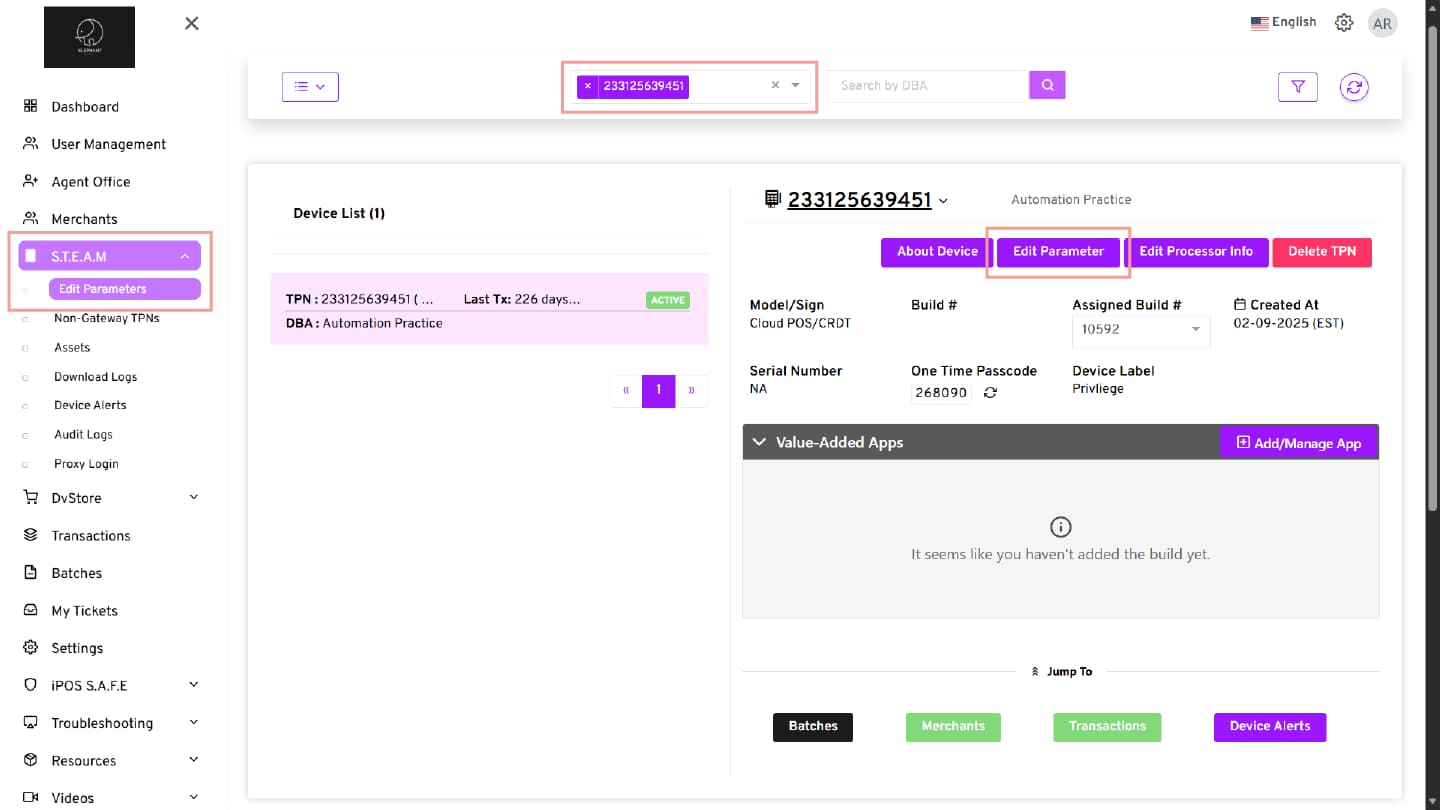
1. Access S.T.E.A.M Edit Parameters
-
Log in to the iPOSpays portal using your ISO or Merchant credentials.
-
Navigate to: S.T.E.A.M → Edit Parameters
-
Search and select the required TPN using the search box.
-
Click Edit Parameters.
2. Navigate to Transaction Settings
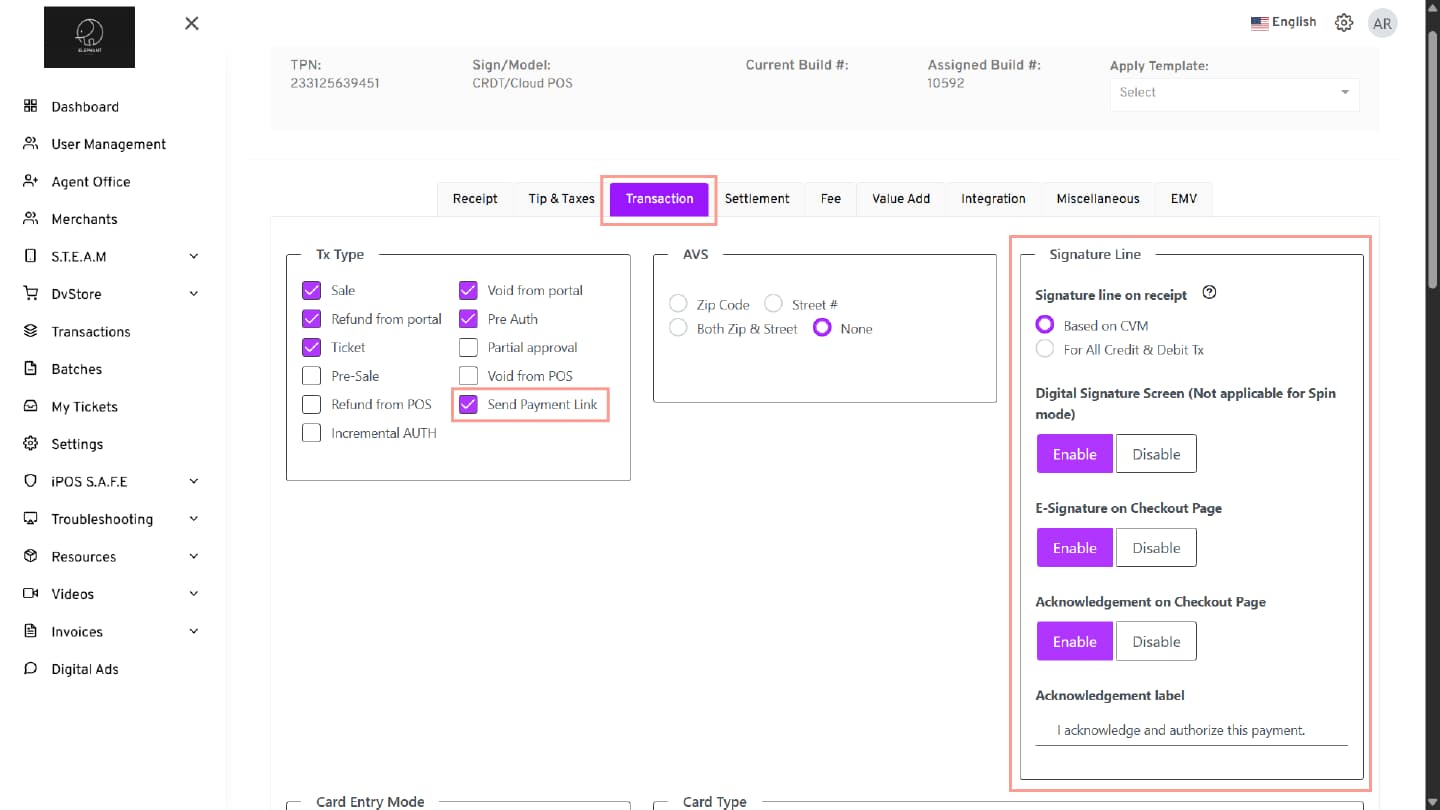
- Go to the Transaction tab.
3. Enable Send Payment Link
Under Tx Type:
- Check Send Payment Link
4. Enable E-Signature on Checkout Page
In the Signature Line section:
- Enable E-Signature on Checkout Page
(Optional)
- Enable Require Acknowledgement on Checkout Page if acknowledgement is required
5. Configure Acknowledgement Label (Optional)
Enter the acknowledgment message in the Acknowledgement Label field.
Example:
I acknowledge and authorize this payment
6. Save Configuration
Click Save to apply the changes
E-Signature & Acknowledgement Behavior on Checkout Page (Customer View)
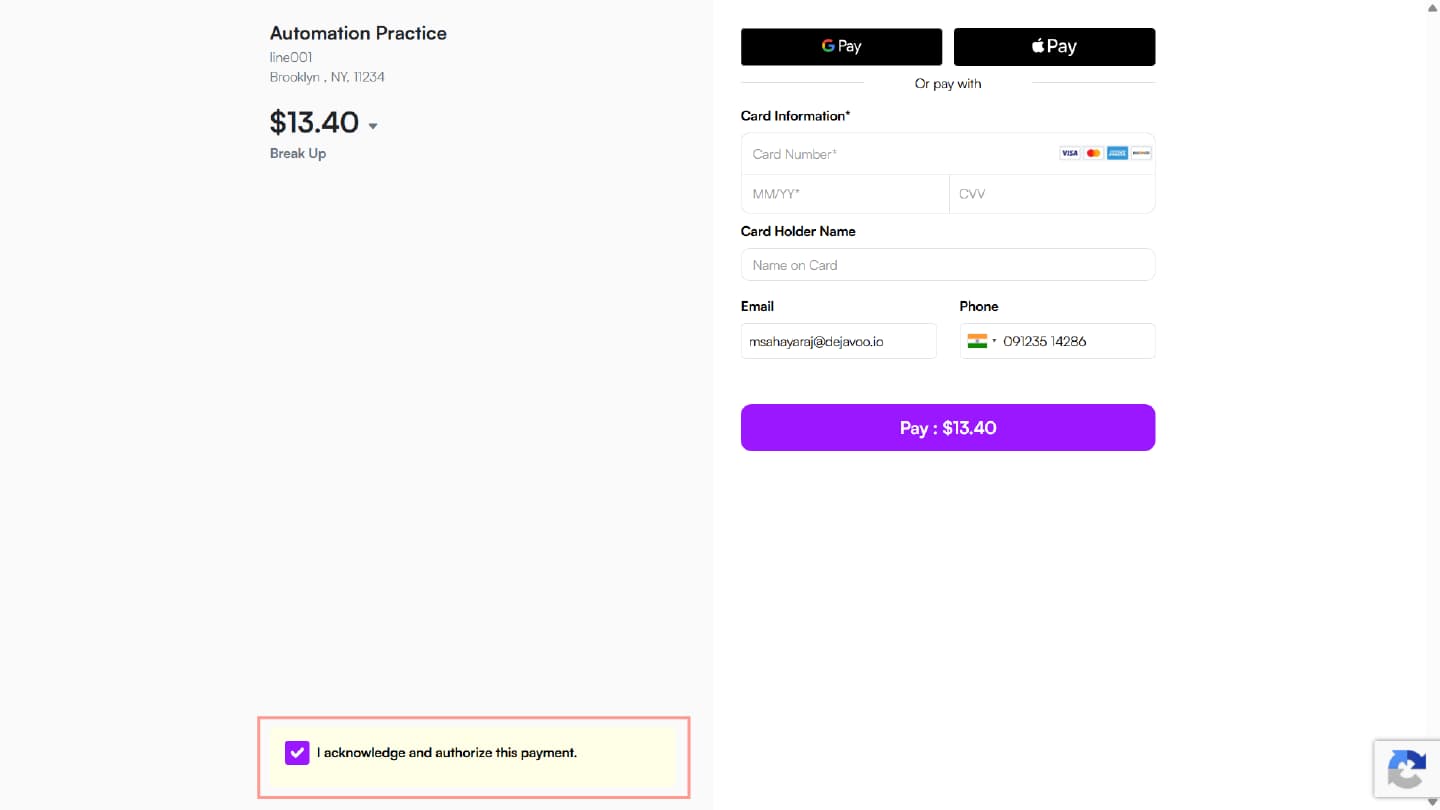
Case 1: Only “Require Acknowledgement on Checkout Page” Enabled
- A Disclaimer section is displayed
Customer must:
-
Check “I acknowledge and agree to the terms of this Disclaimer.”
-
No E-Signature field is shown
-
The customer can proceed after selecting the checkbox
Case 2: Only “Enable E-Signature on Checkout Page” was enabled
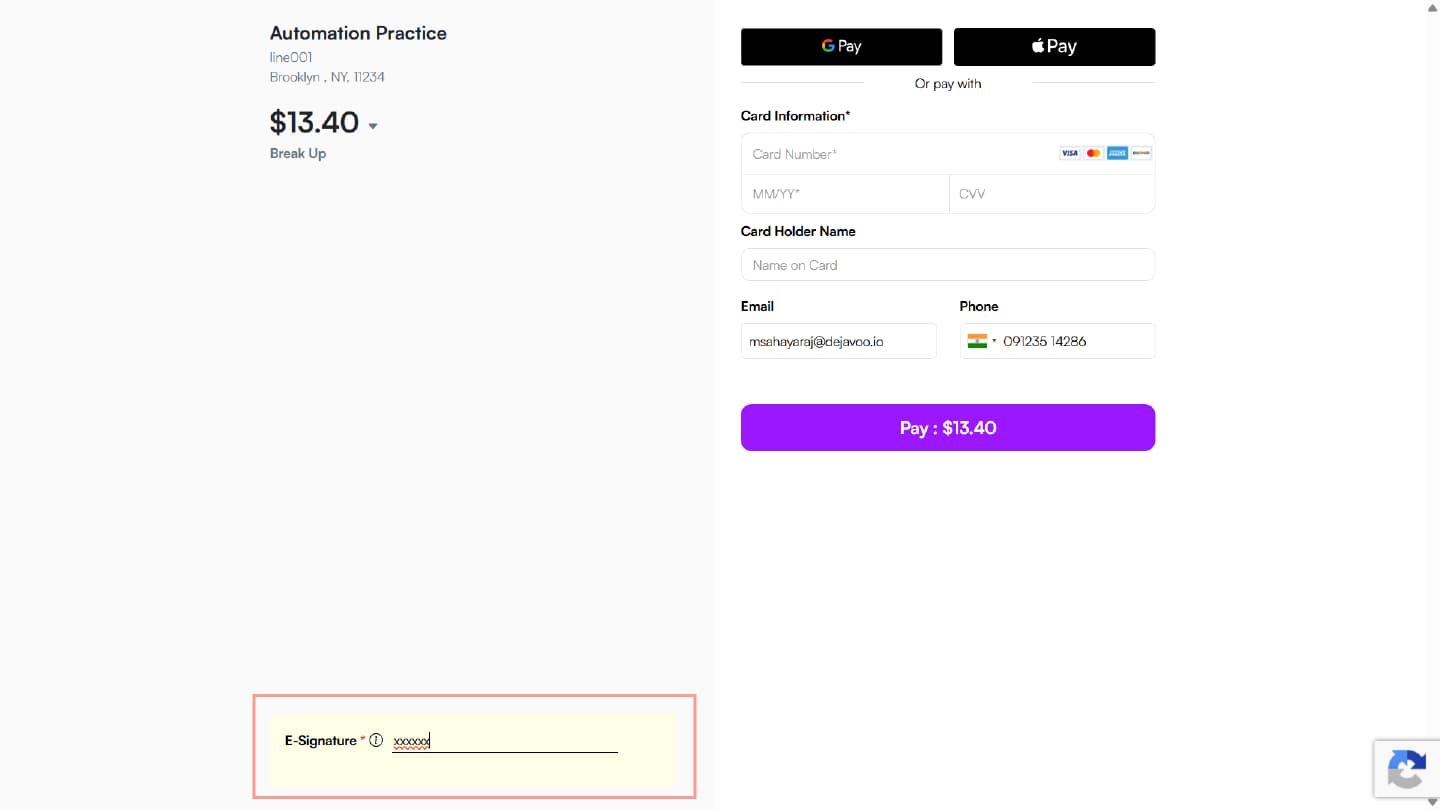
- The E-Signature field is displayed
Field shown:
-
Full Name (E-Signature)
-
The customer must enter their name to proceed
-
No acknowledgement checkbox is displayed
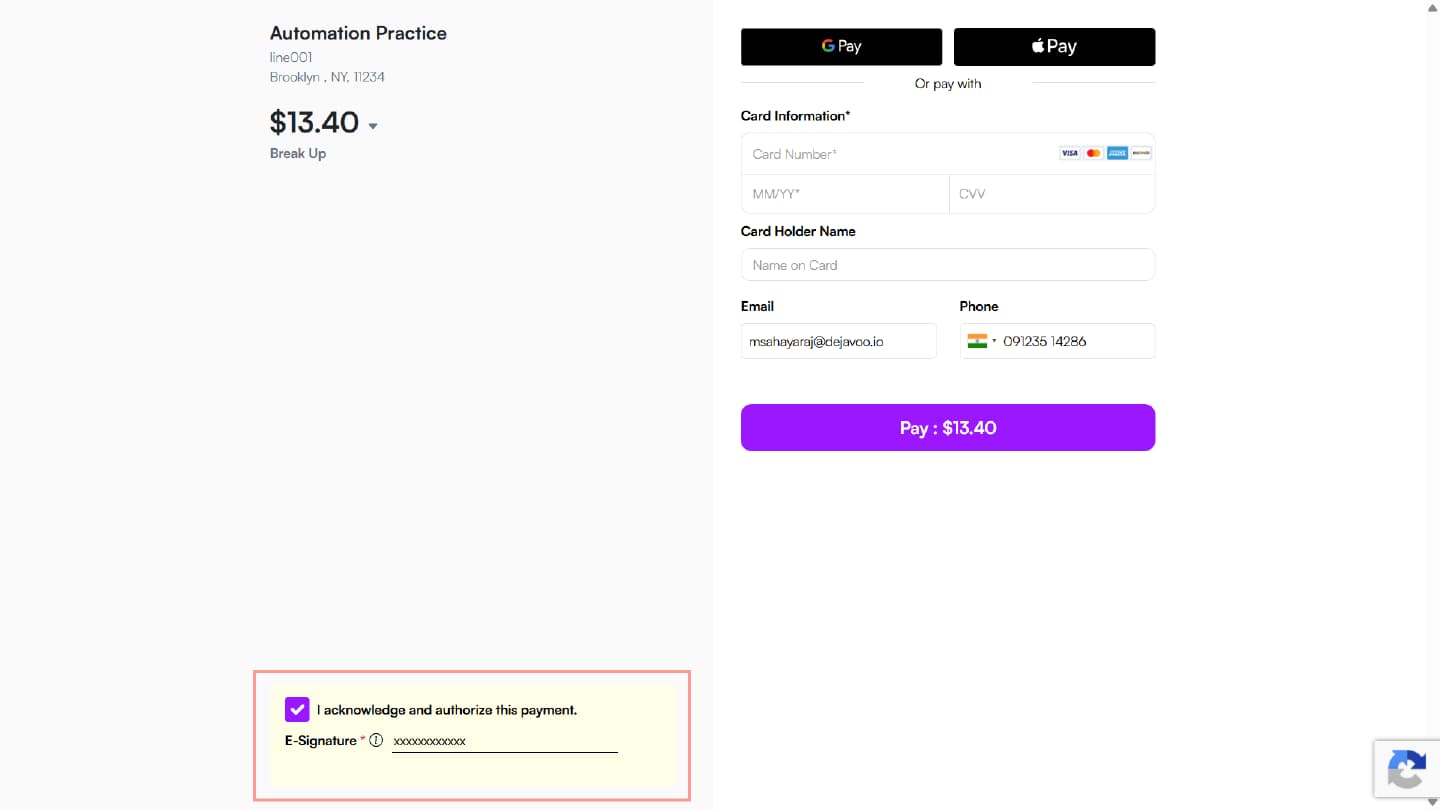
Case 3: Both E-Signature and Acknowledgement Enabled
-
The disclaimer + Acknowledgement checkbox is displayed
-
The E-Signature field is also displayed
Customer must:
-
Check the acknowledgement checkbox
-
Enter Full Name (E-Signature)
-
Both are mandatory to complete payment
Case 4: Both Disabled
-
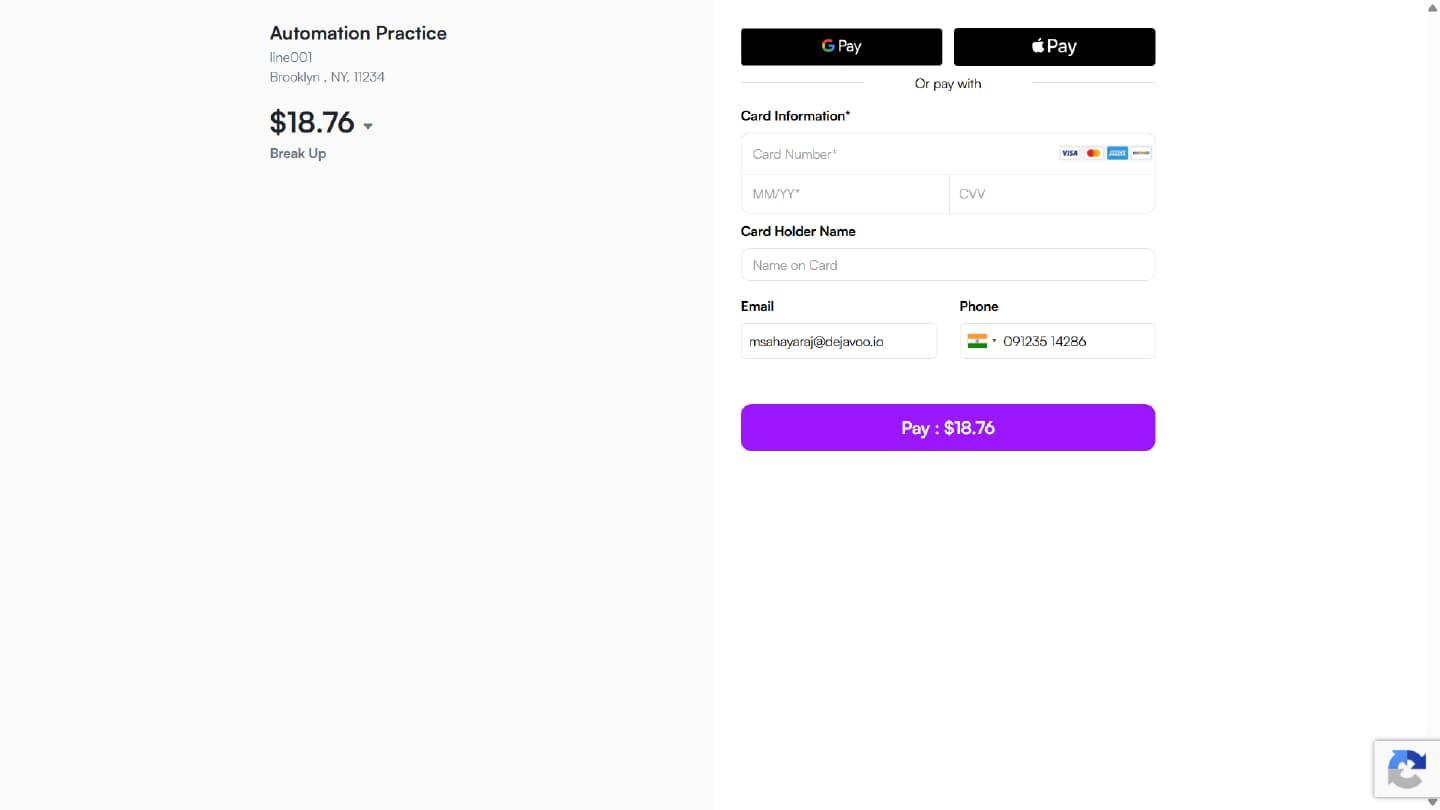
No disclaimer
-
No acknowledgement checkbox
-
No E-Signature field
-
Standard checkout flow
4. Complete Payment
- Customer enters payment details
- Clicks Pay
- The transaction is processed successfully
Receipt Behavior
When E-Signature is Enabled:
Receipt displays:
- Customer Full Name (E-Signature)
- IP Address
Appears in:
- Customer copy
- Merchant copy
When Only Acknowledgement is Enabled:
- No E-Signature is displayed on receipt
- Standard receipt is generated
When Both Enabled:
- E-Signature is displayed on the receipt
- The IP Address is displayed
- Acknowledgement is captured as part of transaction validation
When Both Disabled:
- No E-Signature or acknowledgement details on receipt
- Standard receipt format