Hacienda Integration & Reduced Tax Support (Puerto Rico)
iPOSpays now supports Hacienda integration to help merchants in Puerto Rico comply with tax reporting requirements by ensuring each transaction includes the Hacienda MID.
This enhancement also introduces Reduced Tax (R-Tax) support for eligible items such as prepared food, enabling accurate tax calculation, better compliance, and detailed tax breakdown on POS and receipts.
Feature Compatibility
-
Minimum Required POS build: 10172
-
Supported Channels: POS (Standalone), SPIn API (SOAP & REST)
-
Supported Devices: All supported iPOSpays POS terminals
Key Features
-
Hacienda MID tagging for all transactions
-
Reduced Tax support for eligible items (e.g., food)
-
Dynamic tax split on POS (Local, State, Reduced Tax)
-
Food amount-based tax calculation
-
Editable tax values on POS (if enabled)
-
Receipt-level tax breakdown (Base, Local, State, RTax)
-
SPIn API support for tax parameter handling
How It Works
ISO Configuration (Hacienda + Reduced Tax Setup)
Store Setup (Mandatory for Hacienda Identification):
-
Navigate to: Merchants → Select Merchant → Store (DBA) → Edit Store
-
Update ZIP Code with a valid Puerto Rico ZIP Code (example: 00975)
-
Click Save
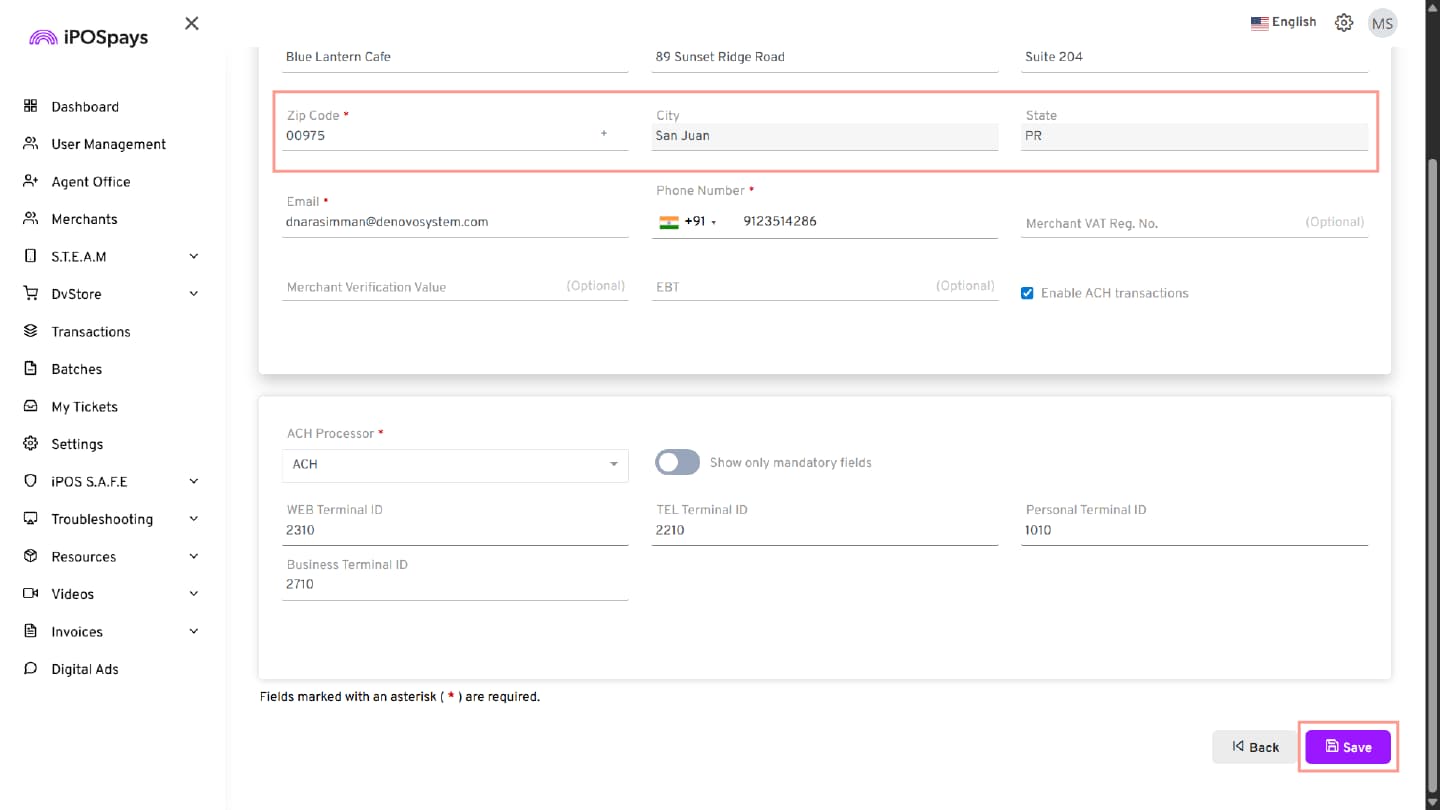
TPN / Device Configuration:
-
Navigate to: S.T.E.A.M → Edit Parameters → Select TPN → Edit Processor Info
-
Set:
- Hacienda Status = Yes
- Enter Hacienda MID
-
Click Save
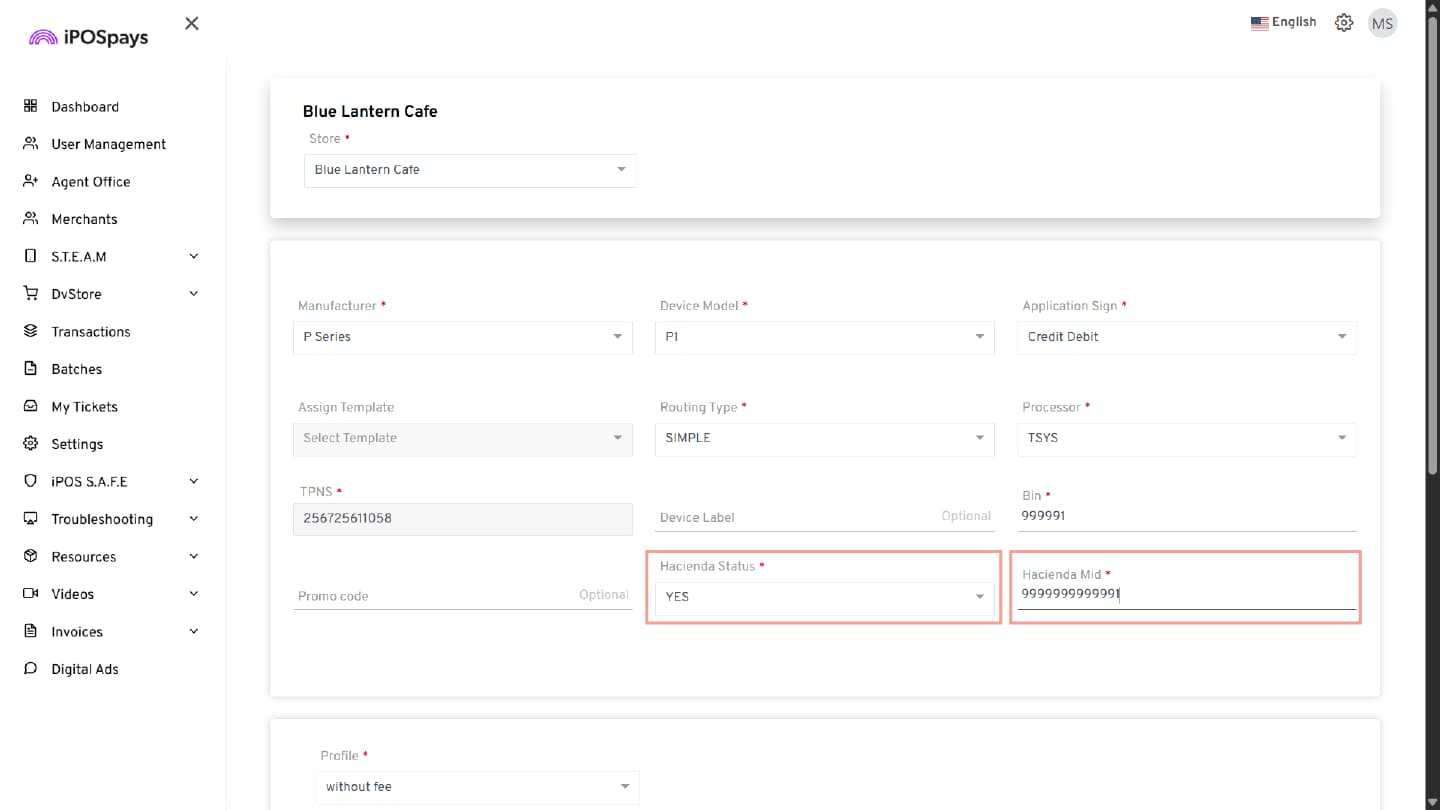
-
Enable Reduced Tax:
-
Navigate to Tips & Taxes
-
Enable Tax
-
Enable Reduced Tax
-
Configure:
- Reduced Tax Label
- Reduced Tax Value (%)
- Add Tax to Entered Amount (Yes / No)
-
Configuration Behavior
Add Tax to Entered Amount = Yes (Tax Inclusive):
- Total remains unchanged; tax is split and displayed
Add Tax to Entered Amount = No (Tax Exclusive):
- Tax is added on top of the entered amount
If Food Amount is entered:
- Reduced Tax is applied only to eligible portion
Click Save or Save As Template
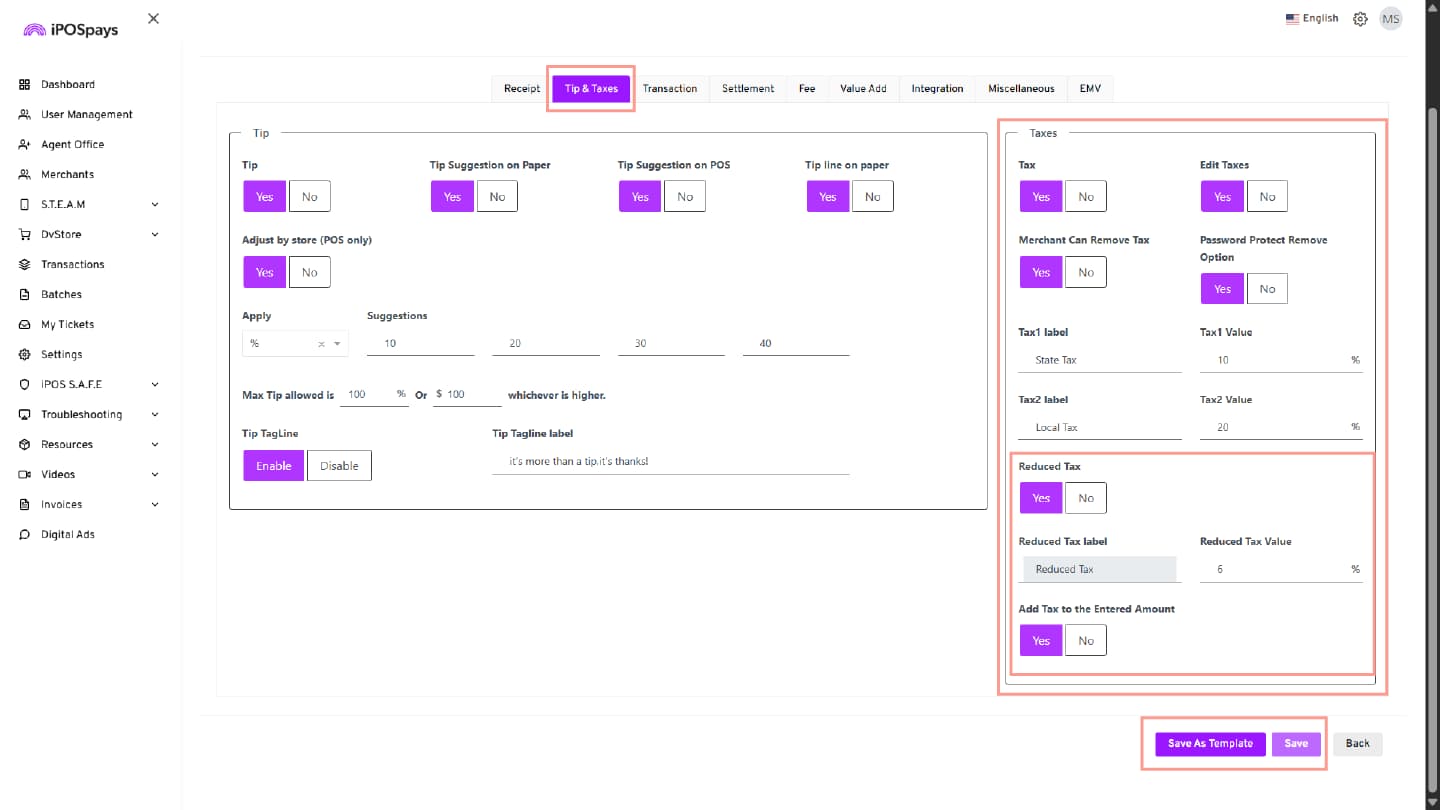
POS Transaction Flow
-
Enter transaction amount
-
View Breakdown Screen
-
Enter Food Amount (eligible for Reduced Tax)
-
System applies:
-
Reduced Tax → Food portion
-
Standard Tax → Remaining amount
-
-
Complete payment
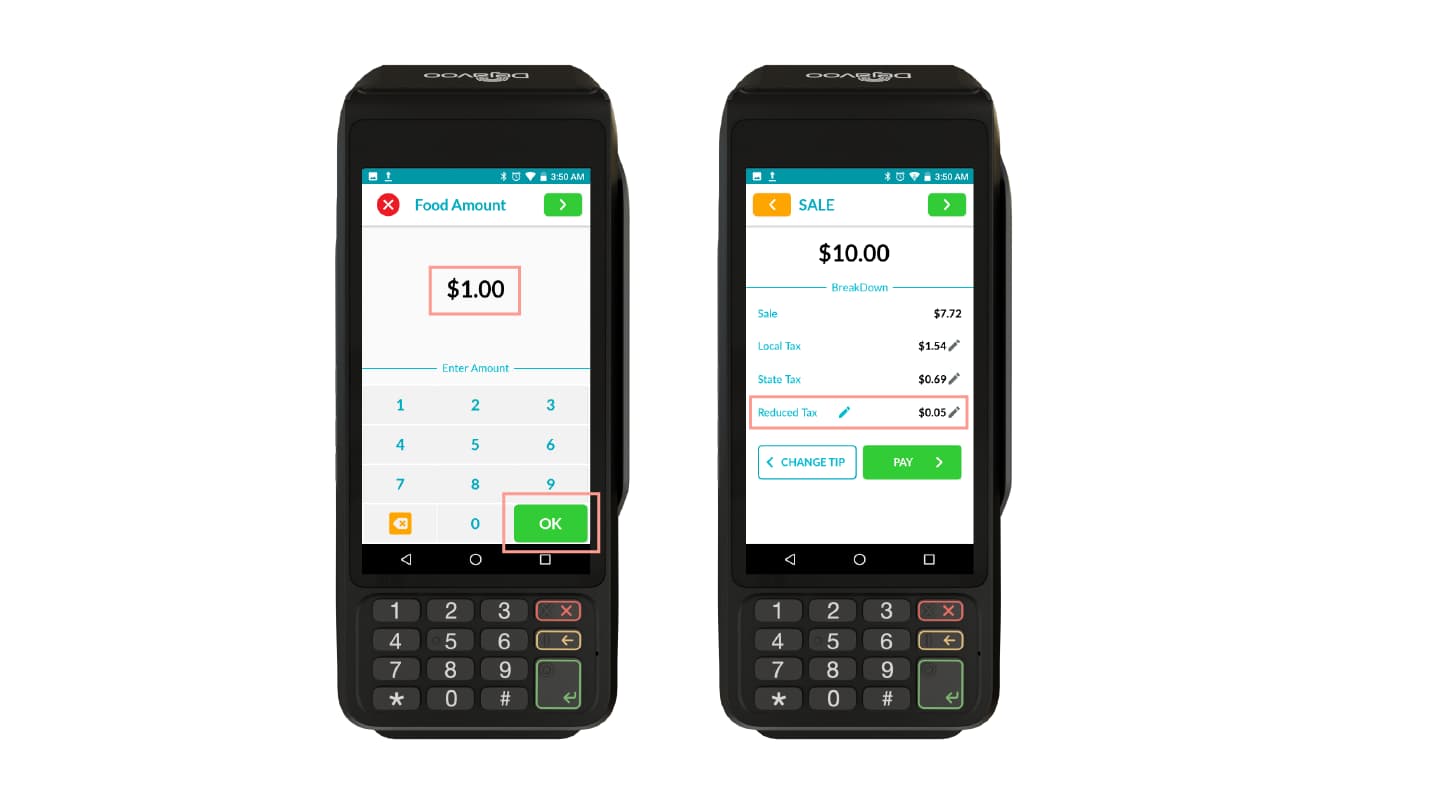
SPIn (API) Support
Requirements:
-
TPN must have Hacienda enabled
-
TPN must have the Reduced Tax parameter enabled
-
Host system must pass:
- State Tax
- Local (City) Tax
- Reduced Tax
- Food Amount
Behavior:
-
If tax values are passed via API:
- POS UI will not display the Food Amount / Reduced Tax fields
- Tax is processed based on API input
-
Reduced Tax will not be applied if either State Tax or Local (City) Tax is provided in the API request; it is applied only when both are not passed, allowing calculation based on configured Reduced Tax settings.